RBFS Licensing
Overview
RBFS Licensing allows you to access the full functionality of your RtBrick FullStack (RBFS) installation. Rtbrick provides a 28-day evaluation license on request. It is not allowed to be used in production. Use a permanent or subscription license that has been purchased through RtBrick Sales. If you want to extend the evaluation period and get additional licenses, contact RtBrick Support.
Without any license installed on your system, you can evaluate RBFS for 7 days. You need to get an evaluation license or purchase an actual license within 7 days to use the full functionality of RBFS.
Obtaining or Extending Licenses
To obtain new RBFS licenses or extend the existing licenses, go to https://portal.rtbrick.com/, click Licenses in the left-side menu, and then select the Request license link. For details, see the Managing Licenses via Self-Service Portal section below.
Managing Licenses via Self-Service Portal
The RtBrick Self-Service portal enables users to view existing license keys, request new licenses, and renew licenses that are about to expire.
Accessing the license key
To access the license key, click on Licenses in the left-side menu. This page lists your available licenses. Select the license you want to view.
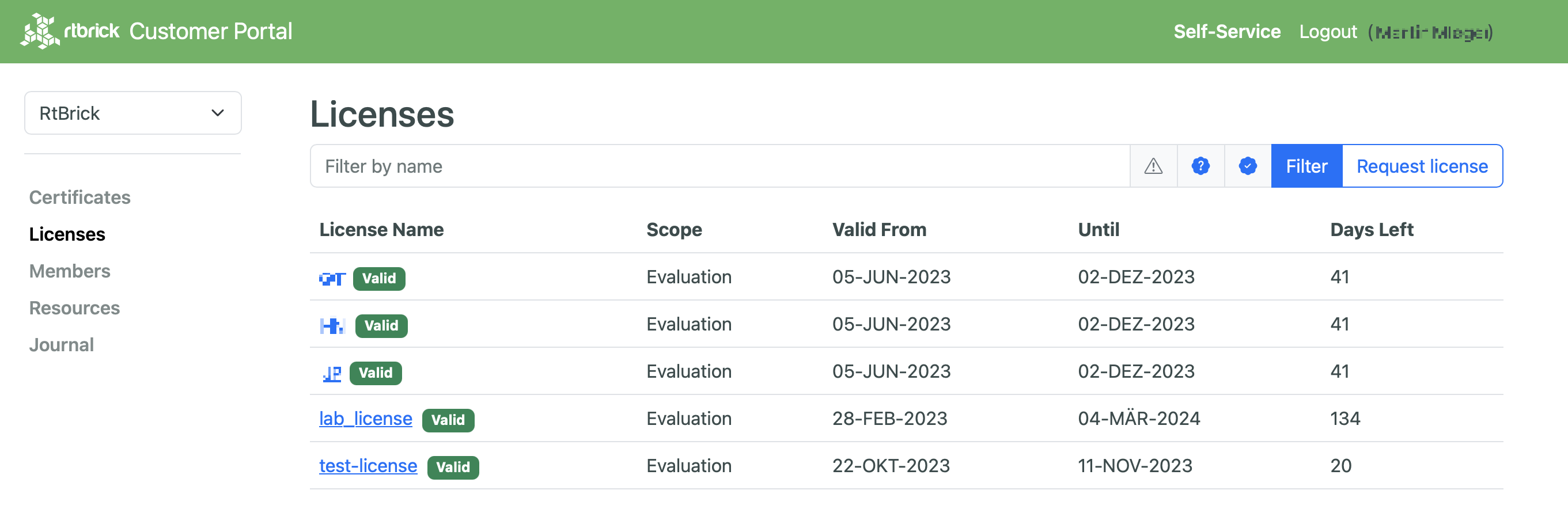
The detail view shows the license details including the license key.
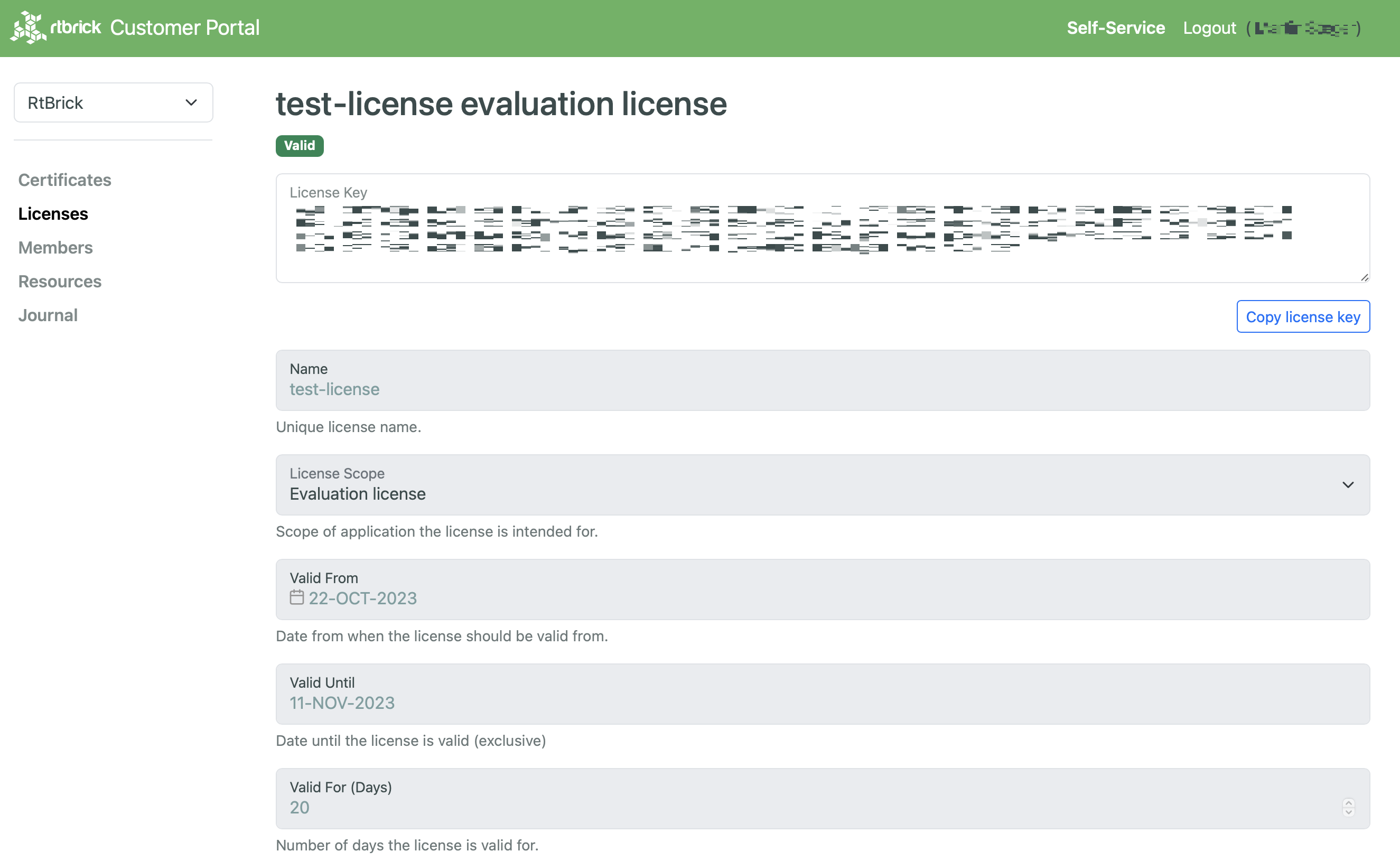
Click Copy license key to add the license key to the clipboard.
Working with the license list view
The license list view allows filtering licenses by their names and lifecycle status.
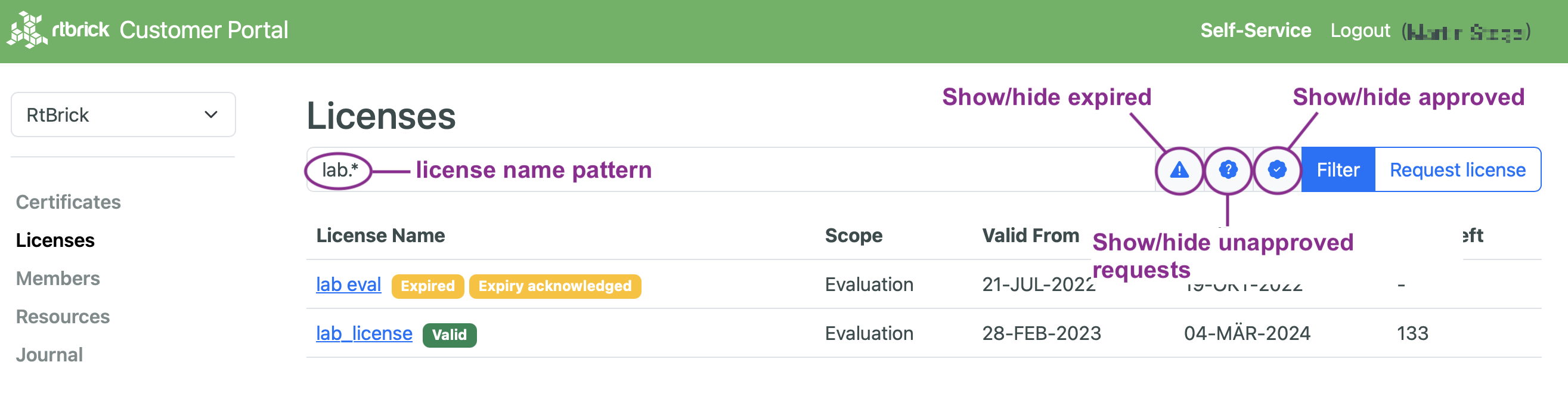
The name filter is a regular expression. The icons next to the filter allow including or excluding expired licenses, unapproved license requests and approved licenses from the license list.
Requesting a new license
To request a new license, proceed to licenses on the left-side menu and click the Request license button to request a new license.
Fill the license request form with all relevant data.
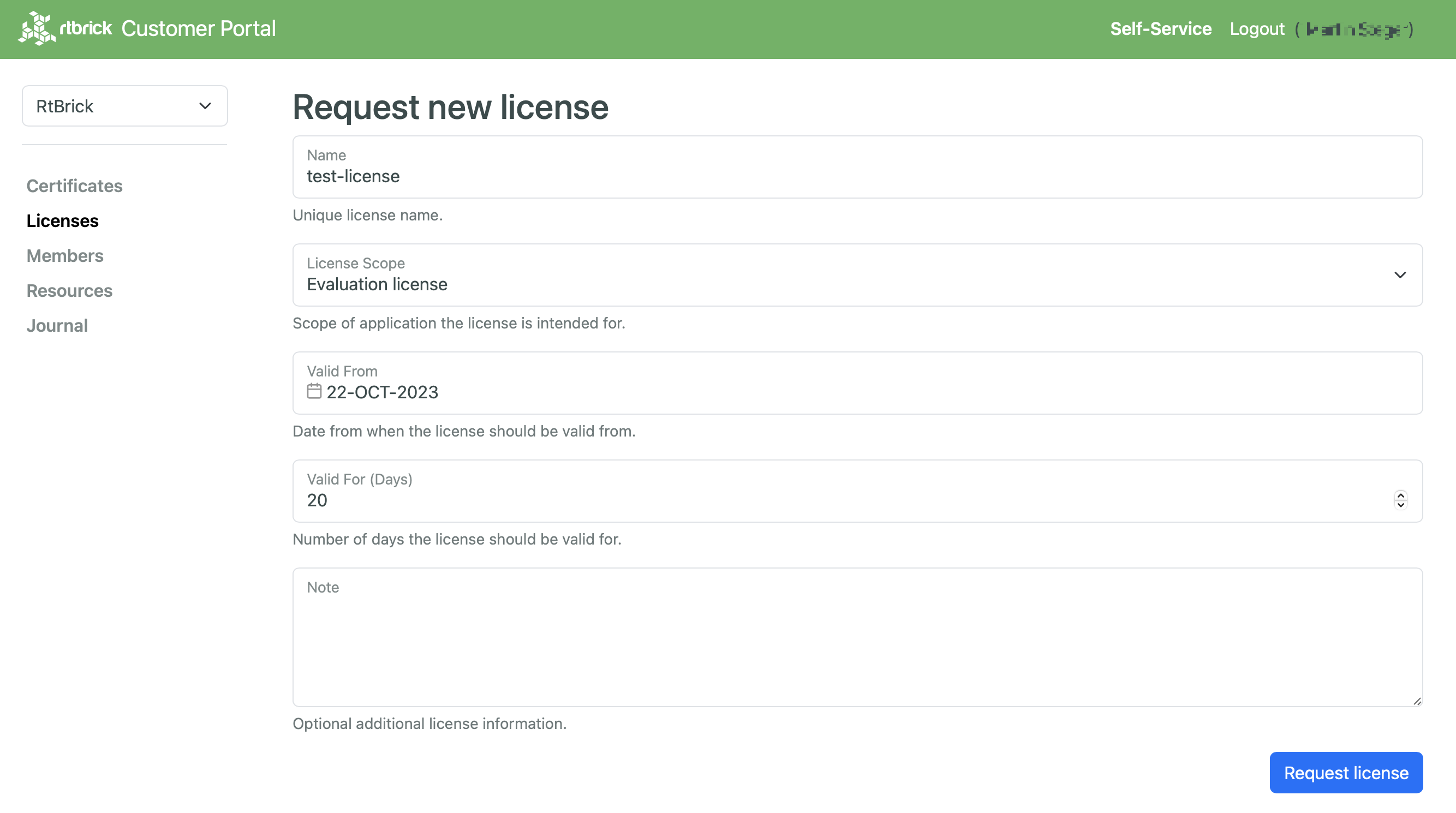
Click the Request license button to submit the license request.
Renewing an existing license
The portal reports when a license is about to expire. Click the Renew button to create a license request from the current license and copy all relevant data from the license to the license request. Once the license request has been approved, the new license and the license about to expire are both valid to give some time for deploying the new license key to the RBFS instances.
Click the No renew button if a license is supposed to expire and shall not be included in the expiry notifications anymore.
Installing a License
You can install a license by using the RBFS CLI or via the RESTCONF API. You should get a license encrypted string from Rtbrick and configure the same via CLI.
| When you upgrade your RBFS installation, the existing license should either get restored via saved configuration or it needs to be installed again. |
To install a license, enter the following command:
Syntax
Example
supervisor@rtbrick: cfg> set system license “eyJzdGFydF9kYXRlIjogMTYxNTg3MTE3MCwgImVuZF9kYXRlIjogMTYxNTk1NzU3MH0=.Yx/XiFDFRzAtXPUOaIoh5GqiXa+kOJBWp3LgDeJooVrl88mpPs2ZRMPC+k5HvoZDXvsreqRrqoFR3vk7S2PlqmLxYf0bNBly4d1hrloBwwFkFuJaiU/M+ZGPExgILdVyXumI88VYx8m/Z5SxEj0bFQGUy8UHRUYW/Ay8fhPfYejWuSgpv3OrIThH9CVjlDmrp/k4yOuHyTz5gLgq4A0h33vB5O99aOIJW5UX4XDKvQqmqX5kytRlR1SseWuAbWKjUdVOkf2Mk36IbF9/xAKier++LzXESpLMI+MT63AybSDHOBZydoMjLH9C6cPEfGHzWTIBNtT3679Tokf25EK1Jw==”
The following example shows the running configuration.
supervisor@rtbrick: cfg> show config system
{
    "rtbrick-config:system": {
        "license": [
            {
                "license-key": "eyJzdGFydF9kYXRlIjogMTYxNTg3MTE3MCwgImVuZF9kYXRlIjogMTYxNTk1NzU3MH0=.Yx/XiFDFRzAtXPUOaIoh5GqiXa+kOJBWp3LgDeJooVrl88mpPs2ZRMPC+k5HvoZDXvsreqRrqoFR3vk7S2PlqmLxYf0bNBly4d1hrloBwwFkFuJaiU/M+ZGPExgILdVyXumI88VYx8m/Z5SxEj0bFQGUy8UHRUYW/Ay8fhPfYejWuSgpv3OrIThH9CVjlDmrp/k4yOuHyTz5gLgq4A0h33vB5O99aOIJW5UX4XDKvQqmqX5kytRlR1SseWuAbWKjUdVOkf2Mk36IbF9/xAKier++LzXESpLMI+MT63AybSDHOBZydoMjLH9C6cPEfGHzWTIBNtT3679Tokf25EK1Jw=="
            }
        ]
    }
}
Installing Multiple Licenses
You can install multiple licenses. Additional licenses can be installed even when you have existing license(s). The license with the maximum evaluation period will be prioritised over others. When you have multiple evaluation licenses installed, the one that expires later takes higher priority compared to the other licenses.
Viewing the installed license
Syntax
Example
root@rtbrick: cfg> show system license
License Validity:
  License 1:
    Start date : Tue Mar 16 05:06:10 GMT +0000 2021
    End date   : Wed Mar 17 05:06:10 GMT +0000 2021
root@rtbrick: cfg>
After verifying the validity of the license, the license file will be installed at the following location:
/etc/rtbrick/license/rtbrick-license
Syntax
Use the show system license active command to view the active licenses running.
Example:
supervisor@rtbrick.net: cfg> show system license active
Active License Rtbrick_Internal
  Start date: Fri Mar 06 00:00:00 GMT +0000 2026
  End date: Sat Mar 06 23:59:00 GMT +0000 2027
  Days left: 338
 To access the Operational State API that corresponds to this CLI, click
here.
To access the Operational State API that corresponds to this CLI, click
here.
Deleting a License
To delete a license, enter the following command:
Syntax
Example
supervisor@rtbrick: cfg> delete system license “eyJzdGFydF9kYXRlIjogMTYxNTg3MTE3MCwgImVuZF9kYXRlIjogMTYxNTk1NzU3MH0=.Yx/XiFDFRzAtXPUOaIoh5GqiXa+kOJBWp3LgDeJooVrl88mpPs2ZRMPC+k5HvoZDXvsreqRrqoFR3vk7S2PlqmLxYf0bNBly4d1hrloBwwFkFuJaiU/M+ZGPExgILdVyXumI88VYx8m/Z5SxEj0bFQGUy8UHRUYW/Ay8fhPfYejWuSgpv3OrIThH9CVjlDmrp/k4yOuHyTz5gLgq4A0h33vB5O99aOIJW5UX4XDKvQqmqX5kytRlR1SseWuAbWKjUdVOkf2Mk36IbF9/xAKier++LzXESpLMI+MT63AybSDHOBZydoMjLH9C6cPEfGHzWTIBNtT3679Tokf25EK1Jw==”
License Expiry
When a license expires, you will not be able see the operational state of the system via CLI or BDS API.
Restricted Configuration Commits after License Expiry
RBFS restricts system configuration when a valid license is absent, expired, or beyond the grace period. You can run only the set system license command, and all other set system commands are blocked. Also, the set system license command must be committed independently and cannot be combined with other configuration changes. These restrictions are applied to RESTCONF operations too.
License Validation
The process of verifying the validity of the software license is known as license validation. If no license is installed, a 7-day evaluation period will be provided. During this time, there will be no license validation. After the evaluation period ends, the system will check perform license validation every 12 hours. If a valid license is not found, access to the operational state of the system via CLI or BDS API will not be available.
Once a license is installed on the device, it will be validated every 12 hours. If a license is installed within 7 days of evaluation, it is considered the end of the evaluation period, and the license validation will start from that point onward.
Relevant warning or error messages will be generated based on the license validation:
-
A warning is generated if the license validity is less than seven days.
-
An error message is generated if the license validity is less than one day.
-
A critical message is generated if the license has already expired.
Both BDS and file logs are generated for license expiry, and if the Graylog plugin is configured, they are sent to the Graylog. For a list the logs related to license expiry, refer to the section License Log Messages.
To find out the details about the license installed on your system, run the “show system license” command as explained in the section Viewing the installed license.
Operational Commands to View Active Licenses
You can use the show command show system license active to view details of the currently active license(s). The command enables you to quickly verify the license currently in use.
Example:
The following example output displays information about the currently active license, including the license name, validity period (start date and end date), and the number of days remaining.
supervisor@rtbrick.net: cfg> show system license active
Active License RtBrick_Lab_v1
  Start date: Thu Nov 27 00:00:00 GMT +0000 2025
  End date: Fri Nov 27 23:59:00 GMT +0000 2026
  Days left: 312