Service Profile Configuration
You can set up Service Profile to assign specific Quality of Service (QoS) and IGMP settings to individual subscribers. This ensures that each subscriber gets the right level of service based on their requirements.
The Service Profile configuration is optional.
The following diagram illustrates how the service profile is associated with other subscriber management tasks.
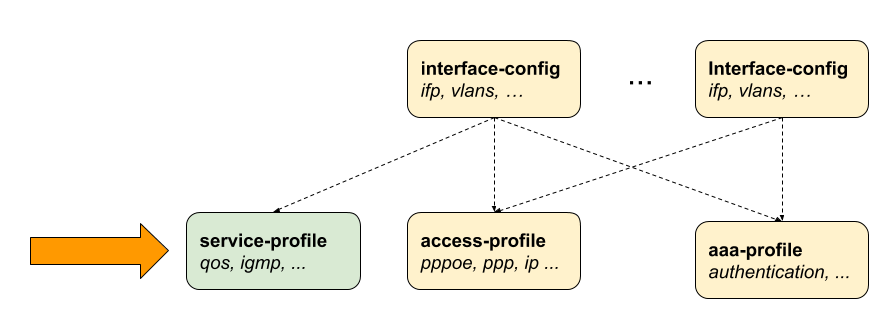
Configuring the Service Profile
The following command and options are used to set up a service profile named 'iptv'.
| Attribute | Description |
|---|---|
|
Without any option, the command creates the specified service profile. |
|
Specifies the name of the service profile. |
|
Configures ACL-related attributes for the service profile. |
|
Configures CGNAT-related attributes for the service profile. |
|
Configures HTTP redirect-related attributes for the service profile. |
|
Configures IGMP-related attributes for the service profile. |
|
Configures QoS-related attributes for the service profile. |
The following example shows a service profile configuration for subscribers with IPTV (multicast) services. The configuration defines specific QoS and IGMP settings that will be applied to subscribers using this service profile. In this configuration, the service profile named ‘iptv’ is linked to a QoS profile named ‘iptv-qos-xl’. This QoS profile defines the prioritization and bandwidth allocation for IPTV traffic for the subscriber profile that it is associated with.
Additionally, the configuration specifies the IGMP settings. Enabling IGMP is achieved by setting it to 'true' for the service profile that enables subscribers to join multicast groups. The configuration specifies the IGMP profile named 'iptv-basic', with IGMP version 3 in use. The parameter max-members is set to 10, which limits the number of simultaneous multicast groups (maximum IGMP memberships) that a subscriber can join.
supervisor@switch: cfg> show config access service-profile iptv
{
  "rtbrick-config:service-profile": {
    "profile-name": "iptv",
    "qos": {
      "profile": "iptv-qos-xl"
    },
    "igmp": {
      "enable": "true",
      "profile": "iptv-basic",
      "version": "IGMPv3",
      "max-members": 10
    }
  }
}
 To access the RESTCONF API that corresponds to this CLI, click
here.
To access the RESTCONF API that corresponds to this CLI, click
here.
Configuring QoS
The following QoS configuration defines the QoS settings for the service profile 'iptv'.
| Attribute | Description | ||
|---|---|---|---|
|
This option defines the parent scheduler element within the scheduler-map that is assigned to the subscriber. If the parent scheduler is not specified, the scheduler-map will be directly bound to the local IFP where the session is established. This attribute can only be set once and cannot be changed without disconnecting the session. The parent scheduler can also be configured through RADIUS, which gets priority over the local configuration.
|
||
|
This option assigns a specific QoS configuration profile to the subscriber. The QoS profile can be also set through RADIUS. If configured both locally and through RADIUS, the RADIUS setting gets priority. |
To access the RESTCONF API that corresponds to this CLI, click
here.
Configuring IGMP
This configuration sets IGMP options in the service profile to provide multicast IPTV to subscribers. It lets you control IGMP features like turning the service on, limiting group memberships per subscriber, linking an IGMP profile, and choosing the protocol version. These settings help ensure efficient multicast, scalability, and support for different client types.
The following IGMP configuration defines the settings for the service profile 'iptv'.
| Attribute | Description |
|---|---|
|
This option dynamically enables or disables IGMP for a subscriber. Default: False. |
|
This option limits the number of simultaneous multicast channels (maximum IGMP memberships) a subscriber can join. Default: 1. Range: 1 - 4294967295. |
|
This option specifies the IGMP profile to be associated with the subscriber. |
|
This defines the version of IGMP for a subscriber. Default: V3. Values: V1, V2, and V3. |
To access the RESTCONF API that corresponds to this CLI, click
here.